
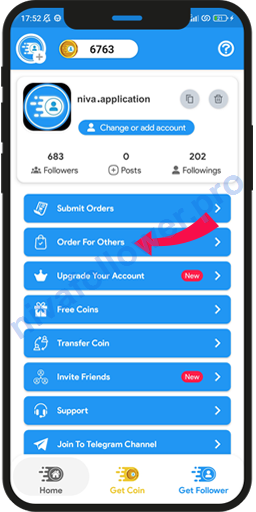
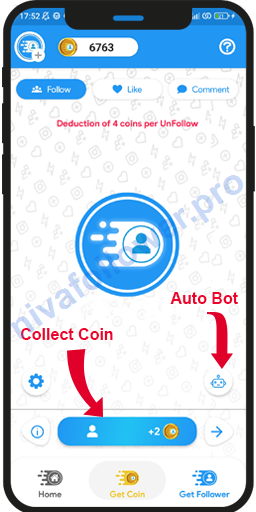
When users get past the sign-in screen, they usually look at two things first: how many coins they have and where to submit an order. This guide keeps those pieces separate so the app does not feel like one busy blue screen.
The coin counter
The coin counter is the small balance area at the top of the app. It gives users a quick idea of how much activity they can use before they need to collect more coins or complete another action inside the app.
If you update the app later, keep this number easy to spot. Users should not have to hunt for their balance before opening an order page.
The order menu
The menu groups the main actions in one list: submit orders, order for others, upgrade account, free coins, transfer coin, invite friends and other shortcuts. The order matters. Put the most common actions near the top and keep the labels short.
The submit screen
The submit screen is where a user chooses what they want to send and fills in the needed detail. A good submit page should feel boring in the best way: clear label, clear input, clear button, no surprise steps.
Why these screenshots are on the site
Showing the real screens on the website helps users recognize the app after installation. It also makes the download page look less generic. Someone can glance at the screenshots and understand that Niva Follower has coins, orders and an Instagram login flow before installing the APK.